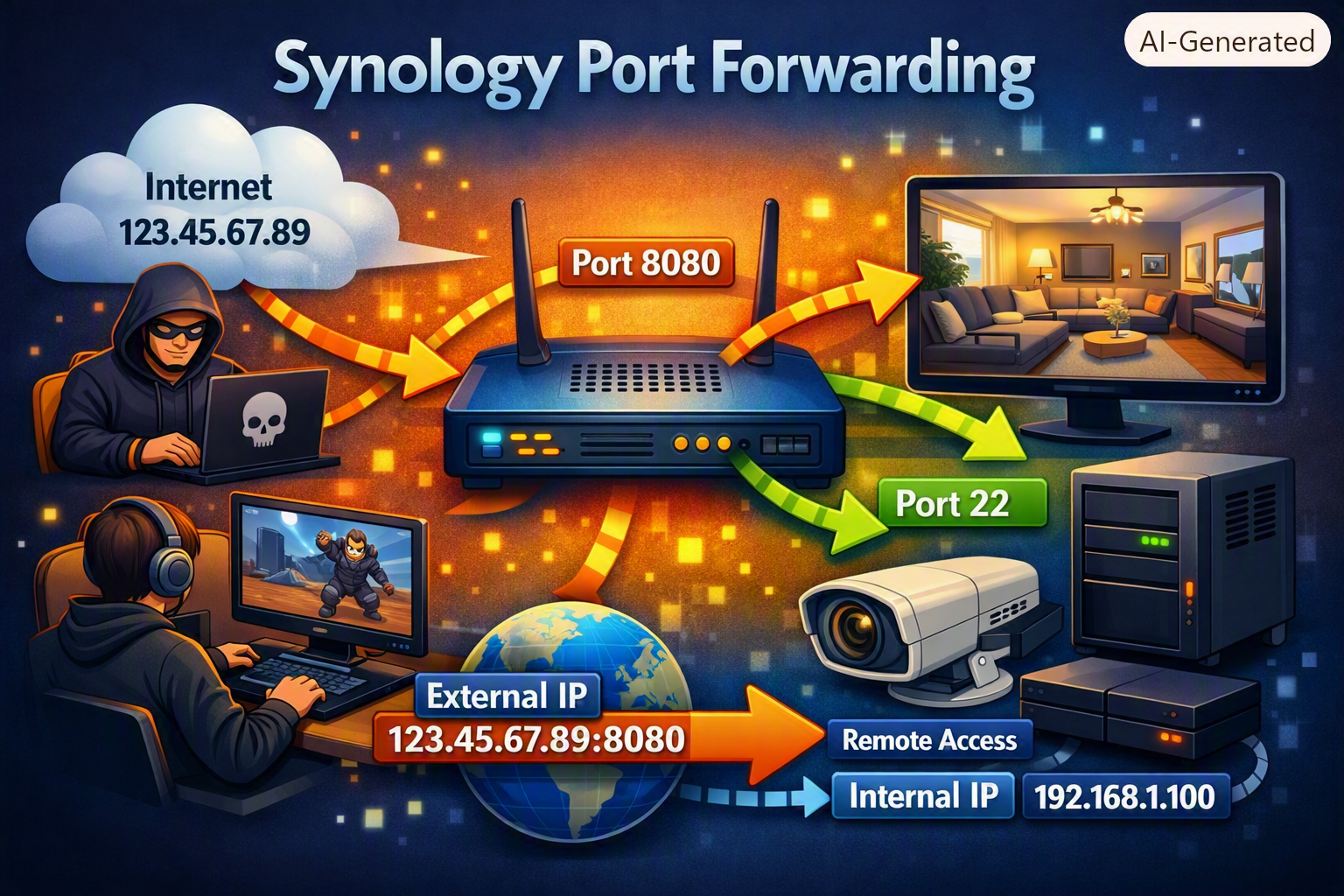
Synology port forwarding lets people outside your home or office network reach a specific service running on your NAS. This is commonly used for Synology remote access, DSM, Synology Drive, WebDAV, FTP, VPN, Plex and other self-hosted services.
But a NAS often stores important personal or business data, so port forwarding should be configured carefully. The goal is not to open every Synology port. The goal is to expose only the service you actually need, protect it properly, and verify from the public internet that the rule works.
This guide explains how Synology port forwarding works, which ports are commonly used, how to configure the router and DSM firewall, and what to check when the port still appears closed.
🔎 Test Your Synology Port From Outside
After creating a forwarding rule, verify whether the selected port is reachable from the public internet.
Run Port Checker →Quick Answer
To set up Synology port forwarding, give the NAS a stable local IP address, create a router rule that sends the chosen external TCP or UDP port to that NAS IP, allow the same service in the DSM firewall, then test the port from outside your network.
For example, if your Synology NAS uses 192.168.1.50 and you want secure DSM access, a basic rule may forward external TCP port 5001 to internal TCP port 5001 on 192.168.1.50. For better security, you may prefer VPN, QuickConnect, source IP restrictions or a reverse proxy instead of exposing DSM directly.
Synology Port Forwarding vs QuickConnect
Synology offers several ways to access a NAS remotely. Port forwarding is only one of them.
- QuickConnect: easier to set up and useful when direct inbound access is difficult. It may use a relay when a direct connection is not possible.
- DDNS: gives your changing public IP address a stable hostname, such as a custom Synology DDNS name.
- Port forwarding: creates a direct path from the internet to a specific service on your NAS.
- VPN: lets you connect to your home network first, then access the NAS privately.
If you only need occasional DSM access, QuickConnect may be enough. If you need direct access to a specific service, port forwarding may be required. If you want the safest remote administration path, using a VPN is often the better design.
Synology Port Forwarding Ports: Common DSM and NAS Ports
The Synology port you need to forward depends on the service you want to access remotely. DSM, Synology Drive, WebDAV, FTP, SSH and VPN services use different ports and protocols. These are common examples:
| Service | Common port | Protocol | Notes |
|---|---|---|---|
| DSM HTTP | 5000 | TCP | DSM web interface. Avoid exposing plain HTTP. |
| DSM HTTPS | 5001 | TCP | Secure DSM web interface access. |
| Synology Drive | 6690 | TCP | Direct connections for Drive Client synchronization. |
| Synology Drive Web Portal | 5000 / 5001 | TCP | Browser access through DSM web services. |
| WebDAV HTTP | 5005 | TCP | WebDAV over HTTP. Prefer HTTPS. |
| WebDAV HTTPS | 5006 | TCP | Secure WebDAV connections. |
| Hyper Backup Vault | 6281 | TCP | Backup destination using Hyper Backup Vault. |
| Rsync | 873 | TCP | Rsync-based remote backup connections. |
| SSH / SFTP | 22 | TCP | Secure shell and file transfers. Restrict access. |
| FTP / FTPS | 21 + passive range | TCP | Configure and forward a fixed passive port range. |
| OpenVPN | 1194 | UDP | Default OpenVPN port. Verify your configuration. |
| L2TP/IPsec | 500 / 1701 / 4500 | UDP | VPN connections using L2TP/IPsec. |
Always check your DSM package settings and Synology's official port list for the services you actually use. Required ports may vary depending on your DSM configuration and installed packages. Do not forward ports for services that are disabled.
Which Ports Does Synology Drive Need?
Synology Drive uses different ports depending on how you access your NAS remotely.
For Synology Drive Client file synchronization, TCP port 6690 is commonly used for direct connections between the client and the NAS.
If you access Synology Drive through its web portal, DSM typically uses HTTPS port 5001 (or HTTP port 5000).
For direct remote synchronization, forward TCP port 6690 to your Synology NAS local IP address, then verify that the service is allowed through the DSM firewall.
You do not necessarily need to expose DSM ports 5000 and 5001 directly to the internet just to use Synology Drive Client.
Which Ports Does Synology Hyper Backup Need?
The ports required by Hyper Backup depend on the backup destination and transfer method.
When backing up to another Synology NAS running Hyper Backup Vault, TCP port 6281 is commonly required on the destination NAS.
For rsync-based backup destinations, TCP port 873 is used for standard rsync connections, while TCP port 22 can be used for encrypted transfers over SSH.
If you are backing up to a remote NAS, configure the forwarding rule on the destination network's router, not just on the source NAS network.
Make sure the destination firewall allows the selected port and that the backup service is running.
How to Set Up Port Forwarding for a Synology NAS
Setting up port forwarding for a Synology NAS involves four main components: a stable NAS IP address, a port forwarding rule on the router, a matching DSM firewall rule, and an external connectivity test.
Step 1: Give Your Synology NAS a Stable Local IP
Port forwarding points to an internal IP address. If your NAS gets a different address later, the rule can break.
Use one of these methods:
- Create a DHCP reservation on your router for the NAS.
- Assign a static IP address in DSM network settings.
Example:
Synology NAS local IP: 192.168.1.50
Router gateway:        192.168.1.1
Service to expose:     DSM HTTPS
Internal port:         5001/tcp
Step 2: Choose the Exact Synology Service
Before opening anything, decide what remote users need to reach.
A common mistake is forwarding many ports "just in case." That makes troubleshooting harder and increases the number of services exposed to the internet.
Step 3: Create the Router Port Forwarding Rule
Synology port forwarding is configured primarily on your router. DSM's firewall is a separate layer and must be configured independently if it is enabled.
Log in to your router and find the port forwarding, NAT, virtual server or applications section. Create a rule that forwards the public port to the NAS local IP address.
Example rule for DSM HTTPS:
| Setting | Value |
|---|---|
| Rule name | Synology DSM HTTPS |
| External port | 5001 |
| Internal IP | 192.168.1.50 |
| Internal port | 5001 |
| Protocol | TCP |
Using a different external port may reduce some automated scanning noise, but changing the port is not a security control by itself.
Step 4: Allow the Service in DSM Firewall
Router forwarding sends traffic to the NAS, but DSM can still block it. If the DSM firewall is enabled, add a rule allowing the service or port you want to expose.
In DSM, check:
- Control Panel > Security > Firewall
- Firewall profile order and interface selection
- Allowed ports for the service
- Source IP restrictions if you only connect from known addresses
If you use country-based or source IP rules, make sure your current external IP is included. Otherwise, you may lock yourself out.
Step 5: Configure DDNS if Your Public IP Changes
Many home internet connections have dynamic public IP addresses. DDNS maps a hostname to your current public IP so you do not have to remember the number.
On Synology DSM, DDNS is commonly configured under Control Panel > External Access > DDNS.
After DDNS is configured, you can connect using a hostname instead of an IP address, such as:
https://your-name.synology.me:5001If you use a different public router port, use that port in the URL.
Step 6: Test From Outside Your Network
Do not rely only on a test from inside your Wi-Fi network. Some routers support NAT loopback and some do not, so local testing can give confusing results.
Use an external port test with your public IP address or DDNS hostname:
If the port is open, the router and NAS are reachable on that port. If the port is closed, continue with the troubleshooting section below.
Synology Port Forwarding Not Working? Common Causes
If port forwarding is configured but the test still fails, check these common causes:
For a broader checklist, read Why Is My Port Closed? and How to Know If Your ISP Uses CGNAT.
Special Case: Synology FTP or FTPS
FTP is more complex than a single port. Port 21 handles the control connection, but passive FTP needs additional data ports.
If you enable FTP or FTPS on Synology, configure a fixed passive port range in the FTP settings, then forward and allow that same range through your router and DSM firewall.
Example:
FTP control:       21/tcp
Passive range:     50000-50100/tcp
NAS local IP:      192.168.1.50
If port 21 is open but directory listing or file transfer fails, passive ports are often the reason. See Open Port 21 FTP for a dedicated FTP troubleshooting guide.
Should You Expose DSM to the Internet?
DSM is an administration interface. Exposing it directly to the public internet can work, but it deserves extra care because the NAS may contain sensitive files, backups and credentials.
If DSM must be reachable externally, apply these safeguards:
- Use HTTPS, not plain HTTP.
- Enable two-factor authentication for administrator accounts.
- Disable default or unused accounts.
- Use strong unique passwords.
- Limit access by source IP when possible.
- Keep DSM and packages updated.
- Enable account protection and auto-block features.
- Review logs for repeated failed login attempts.
For many users, a VPN or QuickConnect is safer than exposing the DSM login page directly.
CGNAT and Double NAT Problems
Port forwarding only works when unsolicited inbound traffic can reach your router. If your ISP uses CGNAT, your router may not have a real public IPv4 address. In that case, port forwarding on your home router will not be enough.
Compare your router WAN IP with your public IP shown online. If they are different and the router WAN address is private or carrier-grade, CGNAT may be involved.
Common solutions include:
- Ask your ISP for a public IPv4 address.
- Use IPv6 if your Synology service and firewall are configured correctly.
- Use QuickConnect for supported Synology services.
- Use a VPN or tunnel service designed for inbound access.
Security Checklist Before Opening Synology Ports
FAQ
What port should I forward for Synology DSM (5000 or 5001)?
DSM commonly uses TCP port 5000 for HTTP and TCP port 5001 for HTTPS. If DSM must be exposed, prefer HTTPS on 5001 and protect it with strong authentication, updates and access restrictions.
Do I need port forwarding if I use QuickConnect?
Not always. QuickConnect can help remote clients reach supported Synology services without manually creating router rules. Direct port forwarding may still improve performance or be required for services that do not use QuickConnect.
Why does my Synology port forwarding not work?
The most common reasons are wrong NAS IP address, DSM firewall rules, incorrect protocol, disabled service, double NAT, CGNAT or testing from inside the same network.
Is it safe to open Synology port 5001?
It can be made safer, but it still exposes the DSM login interface. Use HTTPS, two-factor authentication, updates, source IP restrictions and account protection. For administration, VPN access is often a better option.
Can I forward a different external port to Synology 5001?
Yes, many routers allow external port translation. For example, external TCP port 15001 can forward to internal TCP port 5001 on the NAS. This may reduce background scans but does not replace real security controls.
Can I access my Synology NAS remotely without port forwarding?
Yes. Synology QuickConnect can provide remote access to supported services without requiring manual port forwarding on your router. A VPN or other private remote-access solution can also avoid exposing individual NAS services directly to the internet.
What Ports Need to Be Forwarded for a Synology NAS?
The required ports depend on the Synology services you want to access remotely. Common examples include TCP 5001 for DSM HTTPS, TCP 6690 for Synology Drive, TCP 5006 for secure WebDAV and TCP 6281 for Hyper Backup Vault. You should only forward the ports required by your installed services.
What Is the Default Synology NAS Port for Local Access?
When accessing a Synology NAS from the same local network, port forwarding is not required. DSM normally uses port 5000 for HTTP and port 5001 for HTTPS. You can connect using your NAS local IP address, for example https://192.168.1.50:5001.
Can Synology Automatically Configure Port Forwarding?
Synology DSM includes a router configuration feature under Control Panel > External Access > Router Configuration. It can configure forwarding rules on compatible routers, provided the necessary router features are supported and enabled. Manual configuration on your router may still be required.
How Do I Check Which Ports Are Open on My Synology NAS?
You can use an external port checker to test whether a service is reachable from the public internet. Enter your public IP address and the port you want to check. Remember that a closed port does not necessarily mean the Synology service is misconfigured: your router, firewall, ISP or CGNAT configuration may also prevent incoming connections.