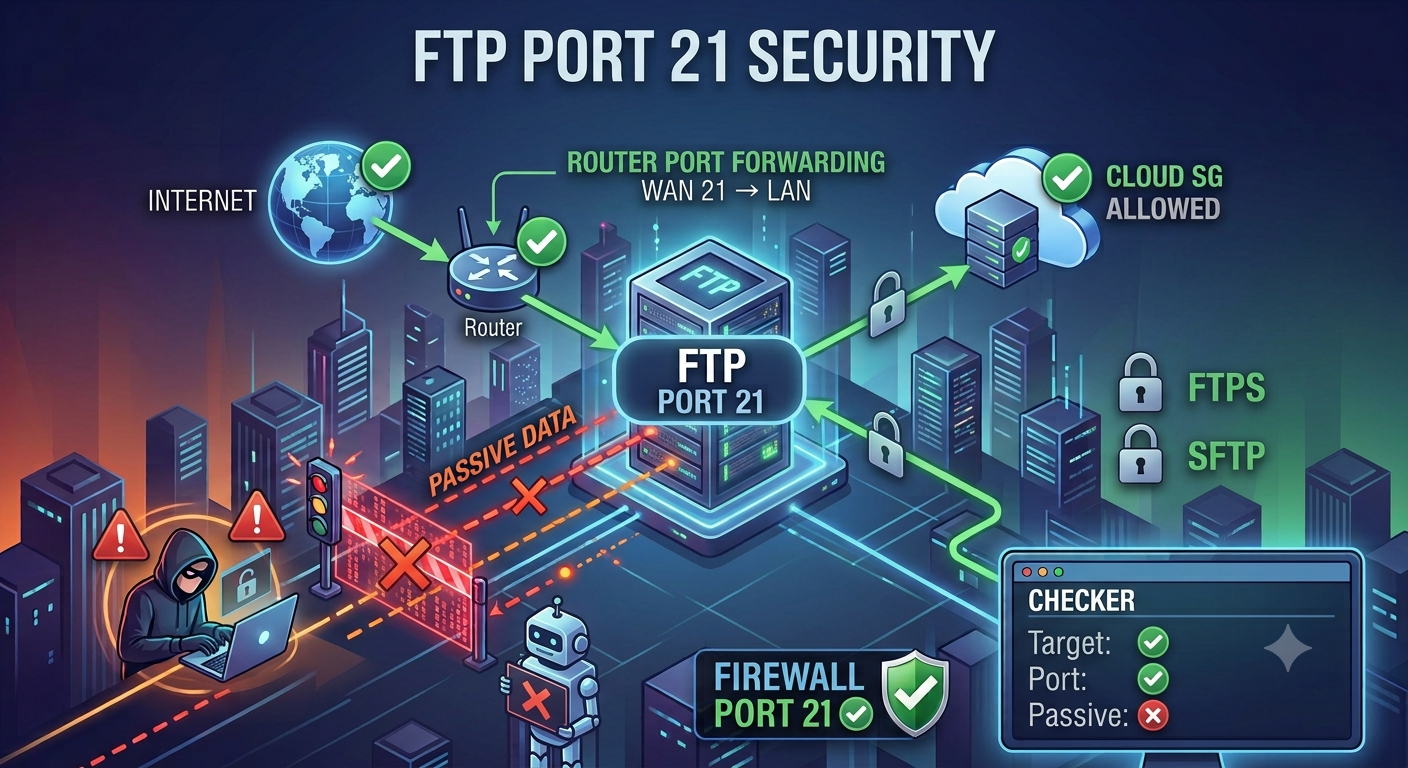
FTP uses TCP port 21 for its control connection. If you run an FTP server and remote users cannot connect, port 21 is one of the first things to check.
But FTP has a catch: opening port 21 alone is not always enough. FTP often needs additional data connections, especially in passive mode. That means a server can accept a login on port 21 but still fail when listing folders or transferring files.
This guide explains how to open port 21, test it from outside your network, configure common firewall and router rules, and secure FTP properly.
Test Port 21 From the Internet
Before changing multiple settings, verify whether your FTP control port is reachable externally.
Check Port 21What Is Port 21?
Port 21 is the default control port for FTP, the File Transfer Protocol. The control connection handles commands such as login, directory navigation, file requests and session management.
FTP is old and widely supported, but plain FTP is not encrypted. Usernames, passwords and file data may travel in clear text unless you use FTPS or a secure alternative.
FTP, FTPS and SFTP Are Not the Same
These names are often confused:
- FTP: classic File Transfer Protocol, usually port 21, not encrypted by default.
- FTPS: FTP secured with TLS. Explicit FTPS often starts on port 21, then upgrades to encryption.
- SFTP: SSH File Transfer Protocol. It is not FTP and usually uses SSH on port 22.
If you simply need secure file transfer, SFTP or FTPS is usually safer than plain FTP. If you must expose FTP, protect it carefully.
Step 1: Confirm the FTP Server Is Running
A port cannot be open if no service is listening. First confirm that your FTP server is installed and active.
On Linux systems using vsftpd, ProFTPD or Pure-FTPd, check the service status:
sudo systemctl status vsftpd
sudo systemctl status proftpd
sudo systemctl status pure-ftpd
Then check whether something is listening on TCP/21:
sudo ss -tlnp | grep :21On Windows, verify that your FTP server is running in IIS, FileZilla Server or your chosen FTP software.
Step 2: Allow Port 21 in the Server Firewall
If the FTP service is running but the firewall blocks traffic, external users still cannot connect.
UFW on Ubuntu or Debian
sudo ufw allow 21/tcp
sudo ufw reload
sudo ufw status
firewalld on Fedora, CentOS or RHEL
sudo firewall-cmd --add-port=21/tcp --permanent
sudo firewall-cmd --reload
sudo firewall-cmd --list-ports
Windows Firewall
Create an inbound rule allowing TCP port 21 for the FTP server application or for the port itself. If using IIS FTP, also check the FTP firewall support settings.
Step 3: Configure Router Port Forwarding
If your FTP server is inside a home or office network, your router must forward incoming TCP/21 traffic to the internal IP address of the FTP server.
A typical forwarding rule looks like this:
| Setting | Example |
|---|---|
| External port | 21 |
| Internal IP | 192.168.1.50 |
| Internal port | 21 |
| Protocol | TCP |
Make sure the FTP server has a stable local IP address. If the internal IP changes, the forwarding rule may point to the wrong device.
Step 4: Understand Passive FTP Ports
This is where many FTP setups fail. FTP uses port 21 for control, but file transfers and directory listings may use separate data connections.
Modern FTP clients often use passive mode. In passive mode, the server tells the client which additional port to use for data transfer. If those passive ports are blocked, users may connect successfully but fail when listing folders or uploading files.
A common solution is to configure a fixed passive port range, such as:
50000-50100/tcpThen allow and forward that same range through your server firewall, router and cloud firewall.
Step 5: Check Cloud Security Groups
If your FTP server runs on a VPS or cloud instance, router forwarding is not the issue. Instead, check cloud firewall rules or security groups.
Allow:
- TCP port 21 for FTP control.
- Your configured passive FTP port range.
- Only trusted source IP addresses when possible.
Cloud firewalls often block traffic before it reaches the operating system, so local firewall rules are not the full picture.
Step 6: Test Port 21 Externally
Testing from inside the same network can be misleading because of NAT loopback behavior. Use an external test to verify what the internet can actually reach.
Use the myIP.casa Port Checker to test your public IP and port 21. If port 21 is closed, focus on the FTP service, firewall, router forwarding, cloud security rules or ISP restrictions.
An open TCP port 21 does not automatically mean that an FTP server is secure or that file transfers will work correctly. It only indicates that a service appears reachable on the tested port. FTP authentication, TLS configuration and passive data ports must be checked separately.
Common Reasons Port 21 Appears Closed
Port 21 Open but FTP Still Does Not Work
If port 21 is open but FTP still fails, the problem may be outside the control port.
Check these common causes:
- Passive port range is not configured.
- Passive port range is configured but not forwarded.
- The FTP server advertises a private IP address instead of the public IP.
- The client is trying active mode while the firewall blocks incoming data connections.
- FTPS is enabled but the client expects plain FTP, or the opposite.
- User permissions prevent listing, reading or writing files.
If logins work but transfers fail, investigate passive mode before changing random firewall settings.
Security Risks of Exposing FTP
Plain FTP is risky because it does not encrypt credentials or file contents. Anyone who can observe the traffic path may be able to read usernames, passwords and transferred files.
Public FTP services also receive automated scanning, login attempts and abuse attempts. If anonymous upload is enabled or credentials are weak, the server can quickly become a problem.
Important risks include:
- Clear-text passwords on plain FTP.
- Brute-force login attempts.
- Anonymous access misconfiguration.
- Directory traversal or permission mistakes.
- Malware or illegal file uploads.
- Old FTP server vulnerabilities.
How to Secure FTP
If you must expose FTP, apply strict controls:
- Use FTPS instead of plain FTP when possible.
- Prefer SFTP if you already use SSH and do not need classic FTP.
- Disable anonymous login unless it is absolutely required.
- Use strong unique passwords or key-based alternatives.
- Restrict FTP access by source IP when possible.
- Limit each user to the directories they actually need.
- Configure a small passive port range and open only that range.
- Keep the FTP server software updated.
- Monitor logs for repeated failed login attempts.
Should You Use FTP Today?
For new deployments, plain FTP is rarely the best choice. It is still used for legacy systems, hosting panels, embedded devices and some workflows, but secure alternatives are usually better.
Use this simple rule:
- Use SFTP for secure file transfer over SSH.
- Use FTPS when you need FTP compatibility with TLS encryption.
- Avoid plain FTP for sensitive files or passwords.
For more on SSH and SFTP, read Open Port 22 (SSH): How to Check if It Is Open and Secure.
FAQ
Is port 21 TCP or UDP?
FTP port 21 uses TCP. You normally need to allow TCP/21, not UDP/21.
Why does FTP connect but fail to list directories?
This is usually caused by passive FTP data ports being blocked or misconfigured. Configure a fixed passive port range and allow it through the firewall and router.
Is FTP secure?
Plain FTP is not secure because it does not encrypt credentials or file transfers. Use FTPS or SFTP for sensitive data.
Is SFTP the same as FTP on port 21?
No. SFTP is SSH File Transfer Protocol and usually uses port 22. It is different from FTP and FTPS.
What Does ftp://localhost:21/ Mean?
The address ftp://localhost:21/ refers to an FTP service running on the same computer, using TCP port 21. The hostname localhost points to the local machine, not to a remote server on the internet. The address will only work if an FTP server is running locally and accepting connections on that port. Modern browsers generally no longer support FTP URLs, so use a dedicated FTP client when needed.
Is It Suspicious for Port 21 to Be Open on a Router?
Not necessarily. An open port 21 may indicate that a router forwards incoming FTP traffic to a server on the local network, or that an FTP service is running on the device itself. If you do not intentionally host an FTP service, check your port forwarding rules and disable unnecessary exposure. If remote file access is required, prefer SFTP or properly configured FTPS and restrict access wherever possible.