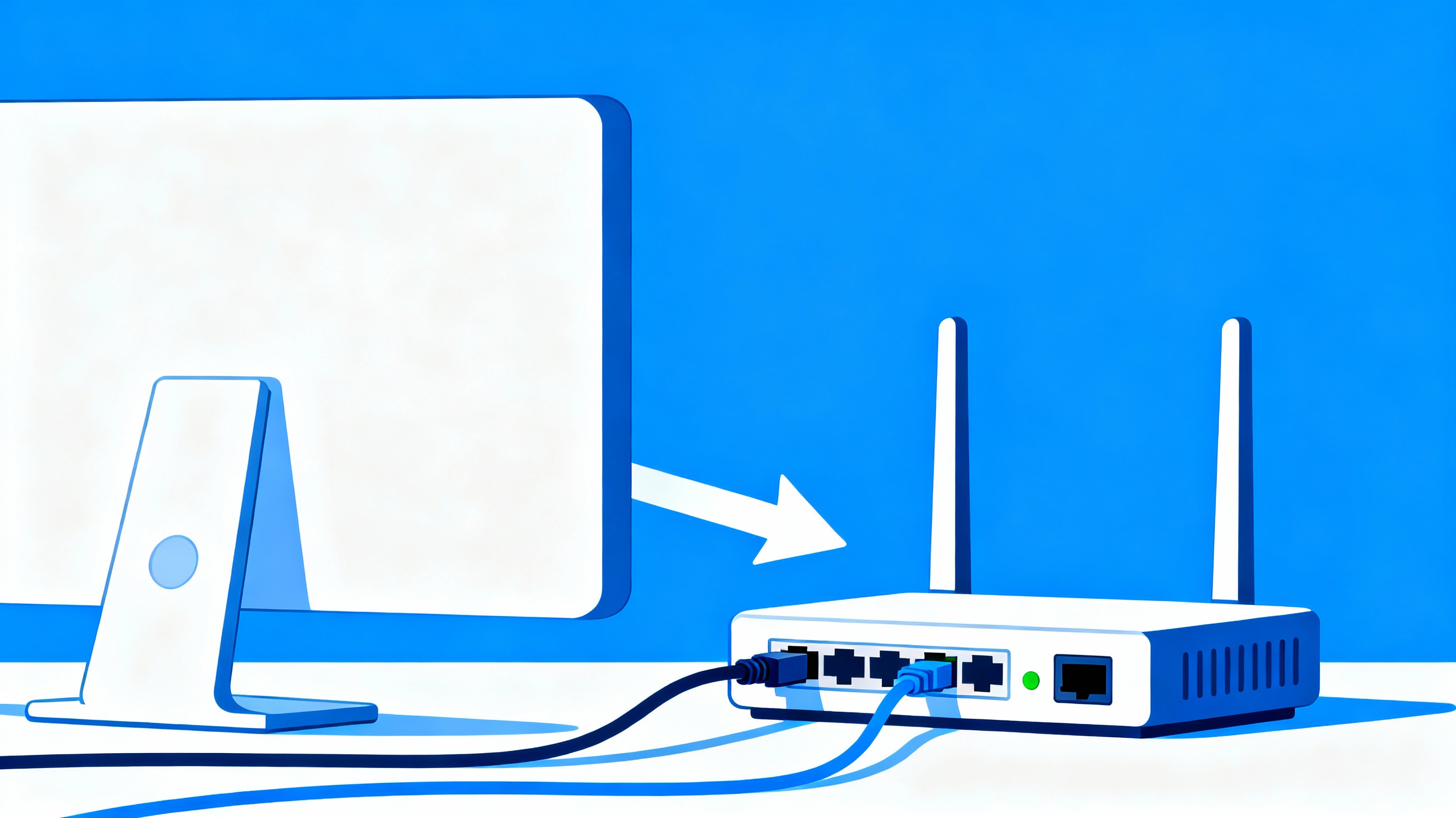
Port forwarding is a powerful networking feature but often misunderstood. Whether you want to host a game server, access your home PC remotely, or stream from a NAS, knowing how to configure ports properly can make a big difference. This guide walks you through what port forwarding is, when and how to use it, and how to do so safely.
What Is Port Forwarding?
Port forwarding (also called port mapping) is a method to let external devices connect to services within your private network. When configured correctly on your router, incoming traffic on a specified external port is forwarded to a specific local device (and port) inside your network.
By default, routers use NAT (Network Address Translation), which blocks unsolicited connections from outside. Port forwarding opens a way in for certain services.
When Do You Need Port Forwarding?
- Hosting or joining peer-to-peer games (e.g. Minecraft, CS:GO).
- Remote access tools (e.g. RDP, VNC) to access your computer from elsewhere.
- Using IP cameras, home automation systems, or a NAS device that must be accessible from outside.
- Running local servers like web servers (HTTP/HTTPS), FTP, or media servers.
- Improving performance/stability for VoIP or VPN apps that require specific ports.
How Does It Work Technically?
The basic flow is:
- Your devices inside your home LAN have private IP addresses (e.g. 192.168.x.x).
- Your router has a public IP address facing the Internet.
- You define a forwarding rule: external port → internal IP & port.
- When traffic arrives at your public IP on that port, router sends it to the specified device.
Example:
- External request:
203.0.113.45:443 - Router forwards to internal server:
192.168.1.100:8080

How to Set Up Port Forwarding (Step by Step)
- Find the local/private IP of the device you want to forward to (via router dashboard or using tools like
ipconfig,ifconfig, or system settings). - Log into your router’s admin panel (often at
192.168.1.1or192.168.0.1). - Navigate to the section named “Port Forwarding”, “NAT”, or similar.
- Create a new rule:
- Service name: descriptive name (e.g. “Minecraft Server”)
- External port: the port exposed to the internet (e.g. 25565)
- Internal IP: the private IP of your device (e.g. 192.168.1.100)
- Internal port: usually same as external, but you can remap if needed
- Protocol: TCP, UDP, or both
- Save/apply changes. If required, restart router or the specific service/device.
Common Issues and Fixes
- 🧩 Double NAT: If you have two routers (e.g. ISP’s box + your own), you may need to forward on both devices.
- 🛡️ Firewall blocking: Both router and the device’s OS/firewall must allow incoming traffic on the specified port.
- 🔄 Dynamic public IP: Your ISP may change your public IP frequently; using a Dynamic DNS (DDNS) service helps you reach your network even if IP changes.
- 🚫 ISP port blocking: Some ISPs block common ports (80, 25, etc.); check if you need to pick alternative ports or contact ISP.
Is Port Forwarding Safe?
Forwarding a port means exposing a service on your network to the outside internet, which introduces security risks. Here are best practices:
- ⚙️ Forward only the ports/services you absolutely need.
- 🔐 Secure the exposed service use strong passwords, TLS/SSL where applicable.
- 🛑 Remove or disable forwarding rules when they are no longer in use.
- 🛡️ Keep firmware, router OS, and your devices updated.
- 💡 If possible, restrict access by IP (whitelisting) or use VPN-based access instead of open port forwarding.
How to Test If Your Port Is Open
Once you believe your forwarding is set up, it’s important to check that it works correctly:
- Use a port checking tool (online port checker) to see if the port appears open from outside your network.
- Try to connect to the service from another network (e.g. mobile data).
- If there is a failure, re-check router logs, firewall rules, IP addresses, protocol settings.
Conclusion
Port forwarding can unlock powerful capabilities on your home network. When done right, it enables hosting, remote access, gaming, automation, and more. But it also comes with responsibility: ensure security, maintain updates, and regularly verify your setup.
Go ahead, forward what’s needed securely and test to make sure everything works as expected.