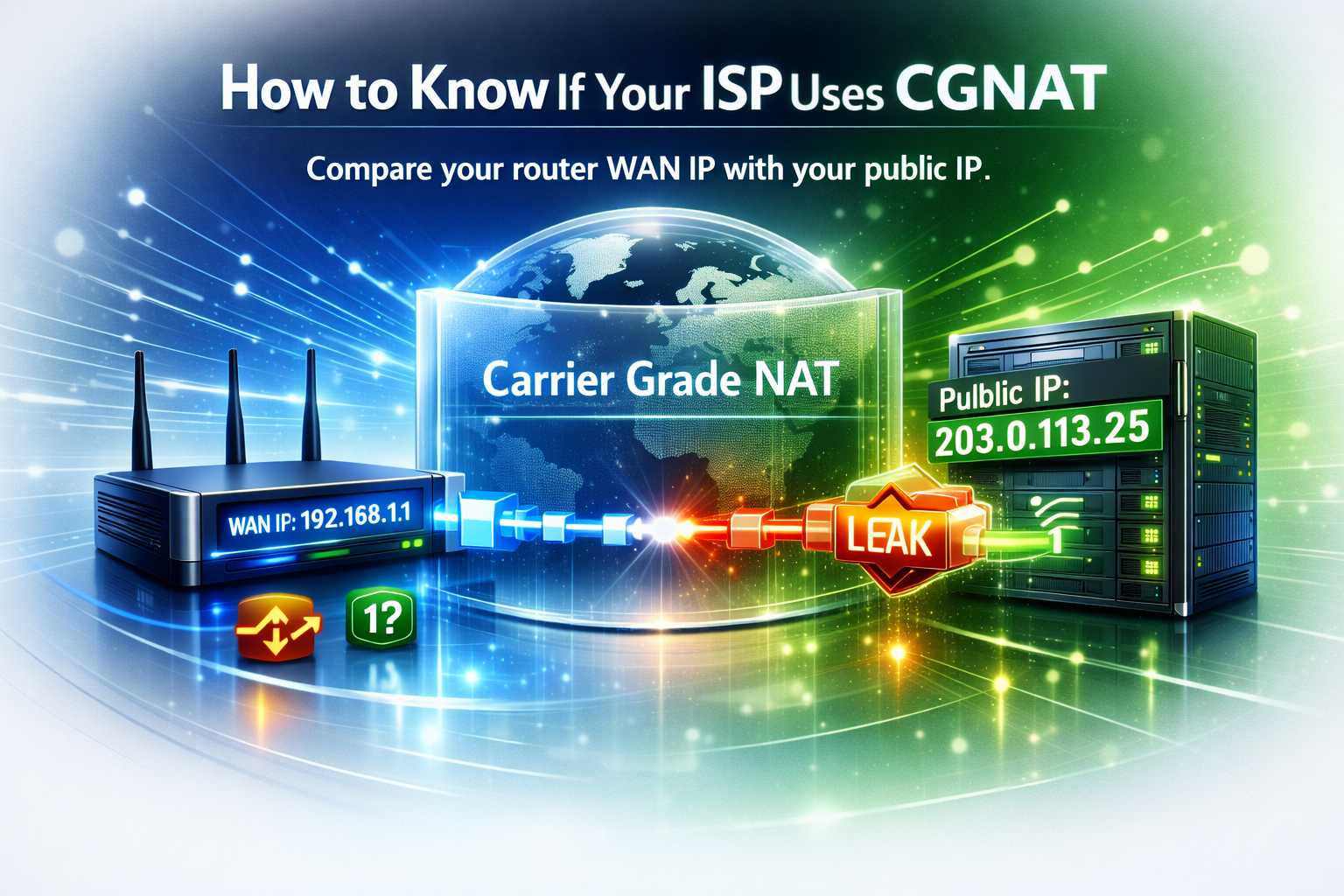
If port forwarding never works, your game server cannot be reached, Plex remote access fails, or your home VPN is invisible from outside, your ISP may be using CGNAT.
CGNAT stands for Carrier Grade NAT. It means your internet provider places many customers behind a shared public IPv4 address instead of giving each router its own directly reachable public IPv4 address.
This article is not just a definition. It is a step-by-step way to check whether CGNAT is likely on your connection.
Quick Answer
The fastest way to detect CGNAT is to compare two addresses:
- The public IP address websites see when you visit them.
- The WAN IP address shown inside your router or modem interface.
If your router WAN IP is different from your public IP, or if the WAN IP is in the 100.64.0.0/10 range, your ISP is probably using CGNAT or another upstream NAT layer.
Step 1: Check Your Public IP
Start by checking the public IP address visible to websites. You will compare it with the WAN IP shown by your router.
Check Your Public IPStep 1: Find Your Public IP Address
Your public IP is the address remote websites and services see when your traffic reaches the internet. You can check it from your browser using myip.casa.
Write this address down. It may look like a normal IPv4 address such as 203.0.113.25. If you are connected through a VPN, disable the VPN first unless you specifically want to test the VPN path.
For CGNAT detection, you usually want to test your direct ISP connection, not a VPN server, proxy, private relay, or corporate gateway.
Step 2: Find Your Router WAN IP
Next, open your router admin page. It is often available at an address such as:
192.168.1.1192.168.0.110.0.0.1
Look for a section named Internet, WAN, Status, Broadband, or Connection. You are looking for the address assigned to the router on the ISP side.
Be careful not to confuse it with your router's local LAN address. A LAN address like 192.168.1.1 is just the local address you use to manage the router. The WAN IP is the important value for this test.
Step 3: Compare WAN IP and Public IP
Now compare the two addresses.
| Result | What it usually means |
|---|---|
| WAN IP equals public IP | Your router likely has a public IPv4 address directly. |
WAN IP is 100.64.x.x to 100.127.x.x |
Strong CGNAT signal. |
WAN IP is 10.x.x.x, 172.16-31.x.x, or 192.168.x.x |
Private upstream address, often double NAT or ISP NAT. |
| WAN IP differs from public IP | Another NAT, proxy, VPN, carrier gateway, or ISP layer is between you and the internet. |
A mismatch is not always CGNAT, but it is the clue that tells you to investigate further.
The Important CGNAT Range: 100.64.0.0/10
The address range 100.64.0.0/10 was reserved for carrier-grade NAT. In practice, that means addresses from:
100.64.0.0- to
100.127.255.255
If your router WAN IP falls inside this range, your ISP is very likely using CGNAT.
This is different from the private addresses used inside homes and offices, such as 192.168.x.x or 10.x.x.x. The 100.64.0.0/10 range is specifically associated with carrier NAT between customers and providers.
Step 4: Test Port Forwarding from Outside
CGNAT becomes most visible when you try to accept inbound connections. If you configure port forwarding perfectly but external tests still fail, CGNAT may be the reason.
Typical symptoms include:
- Port forwarding rules look correct but ports remain closed.
- Plex remote access cannot connect directly.
- Friends cannot join your game server.
- WireGuard, OpenVPN or SSH cannot be reached from outside.
- Security cameras or NAS remote access only work through cloud relay services.
Step 4: Test Your Port Externally
After checking your public IP and router WAN IP, test whether an expected port is reachable from outside your network.
Run Port CheckerCGNAT vs Double NAT
CGNAT and double NAT can look similar because both add an extra translation layer. The difference is where that layer exists.
- Double NAT: usually happens inside your home or office, often with an ISP modem/router plus your own router.
- CGNAT: happens inside the ISP network, before your traffic reaches the public internet.
If your router WAN IP is something like 192.168.0.x, you may simply be behind another local router. If it is 100.64.x.x, CGNAT is much more likely.
Double NAT can sometimes be fixed by bridge mode, modem settings, or configuring forwarding on both routers. CGNAT usually requires action from your ISP or an alternative remote access method.
Does IPv6 Mean You Are Not Behind CGNAT?
Not necessarily. Many ISPs use CGNAT for IPv4 while also giving customers IPv6 connectivity. In that situation, your IPv4 inbound access may be blocked by CGNAT, while IPv6 could still be globally routable.
This is why a service may be reachable over IPv6 but not IPv4, or the opposite. You need to test the protocol you actually plan to use.
If your application, router firewall and ISP all support IPv6 correctly, IPv6 can be a solution for some self-hosting scenarios. But it is not a universal replacement, because visitors and client devices also need IPv6 access.
What to Ask Your ISP
If your tests suggest CGNAT, contact your ISP with specific questions. Vague messages like "my internet is broken" often lead nowhere.
Ask clearly:
- Is my connection behind CGNAT?
- Can you assign me a public IPv4 address?
- Do you offer a static IPv4 option?
- Can CGNAT be disabled on my line?
- Do you support inbound IPv6 connections?
- Are any inbound ports blocked by your network policy?
Some providers can move you out of CGNAT for free. Others charge for a static IP. Some mobile or budget providers may not offer public IPv4 at all.
What If Your ISP Confirms CGNAT?
You still have options, but traditional port forwarding may not be enough.
- Request a public IPv4: the cleanest solution if available.
- Use IPv6: useful when both sides support it and firewall rules are correct.
- Use a VPN with port forwarding: some providers offer inbound ports through the VPN tunnel.
- Use a reverse tunnel through a VPS: common for self-hosters and developers.
- Use vendor relay services: common for cameras, NAS apps and remote desktop tools, but less direct.
The best solution depends on what you are trying to host and how much control you need.
Common Mistakes When Testing CGNAT
Testing while connected to a VPN
A VPN changes the public IP websites see. Disable it when testing your direct ISP connection.
Comparing the wrong router address
The local router address, such as 192.168.1.1, is not the WAN IP. Look for the Internet or WAN status page.
Testing from inside the same network
Some routers do not support NAT loopback. Always test remote access from outside your network or with an external port checker.
Assuming every closed port means CGNAT
Closed ports can also be caused by firewalls, missing services, wrong internal IPs, wrong forwarding rules, ISP port blocking or cloud security rules.
FAQ
Can I detect CGNAT without calling my ISP?
Often, yes. Compare your router WAN IP with your public IP. If the WAN IP is in 100.64.0.0/10 or differs from your public IP, CGNAT or another NAT layer is likely. Your ISP can confirm it officially.
Does CGNAT affect normal browsing?
Usually no. Browsing, streaming, messaging and downloads often work normally behind CGNAT. Problems appear mostly with inbound connections, self-hosting, game servers, home VPNs and direct remote access.
Can port forwarding work with CGNAT?
Traditional router port forwarding usually cannot work through ISP CGNAT because incoming traffic does not reach your router directly. You may need a public IP, IPv6, a reverse tunnel or a VPN with port forwarding.
Is CGNAT a security feature?
CGNAT can reduce unsolicited inbound reachability, but it should not be treated as a complete security solution. You still need firewalls, updates, strong passwords and safe service exposure.
Conclusion
To know if your ISP uses CGNAT, compare your router WAN IP with the public IP shown online. If they differ, or if the WAN IP is in the 100.64.0.0/10 range, CGNAT is likely.
Then confirm with external port testing and, if needed, ask your ISP directly. Once you know whether CGNAT is involved, troubleshooting becomes much clearer: you can stop chasing router settings that cannot work and choose the right solution instead.