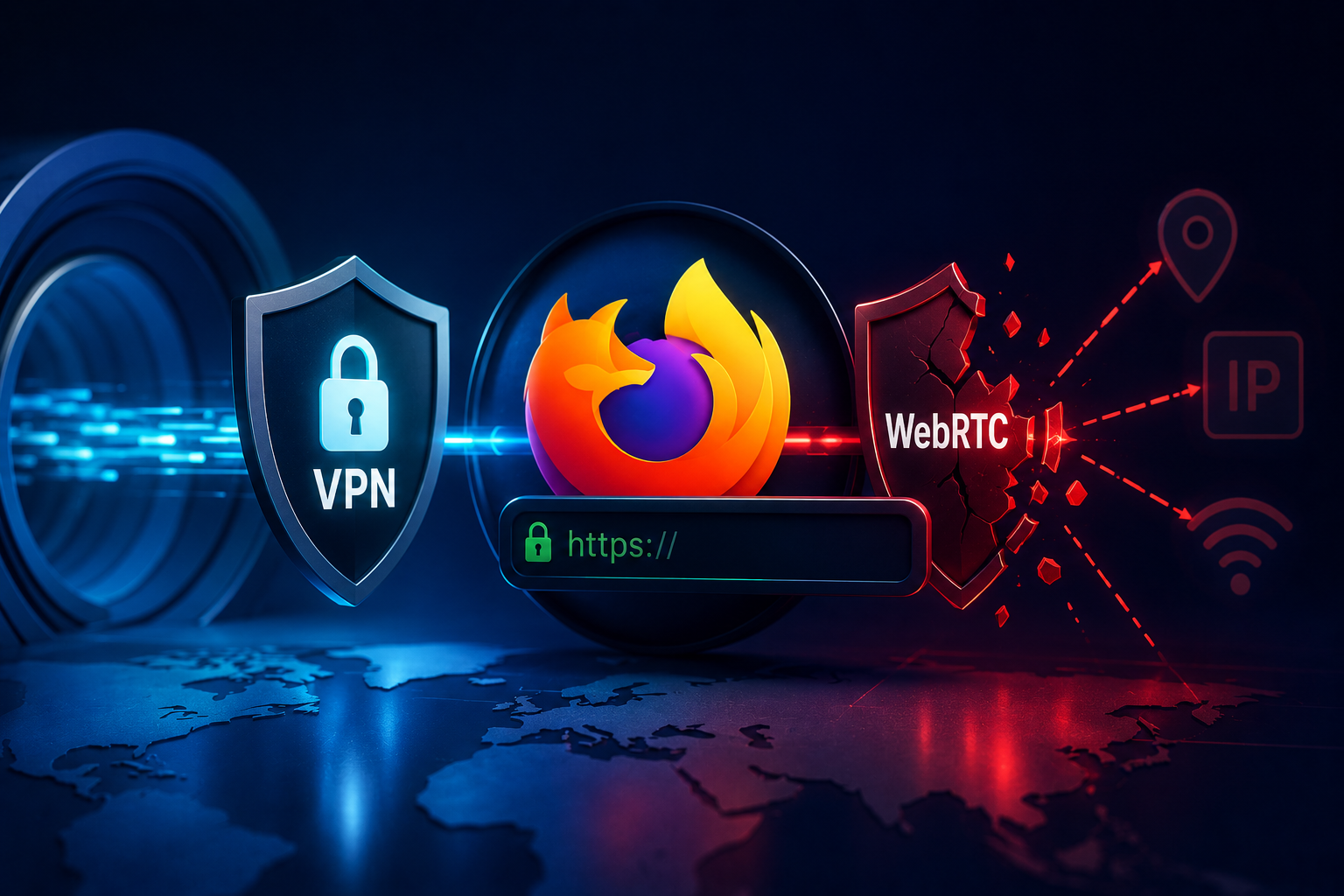
Using a VPN does not automatically guarantee that your real IP address is completely hidden.
Even when connected to a VPN, Firefox may expose network information through WebRTC, allowing websites to discover your real IP address, local network addresses, or IPv6 connectivity details.
If a WebRTC leak test reveals your ISP-assigned IP address, your online privacy may be compromised despite having an active VPN connection.
🚀 Test for WebRTC Leaks
Before making any changes, check whether Firefox is currently exposing your real IP address.
Run WebRTC Leak Test →What Is a WebRTC Leak?
WebRTC (Web Real-Time Communication) is a browser technology used for voice calls, video conferencing, peer-to-peer communication, screen sharing, and real-time collaboration tools.
To establish direct connections, browsers use STUN requests to discover available network interfaces and IP addresses.
In some situations, websites can access this information and identify:
This is known as a WebRTC leak.
Why VPN Users Should Care
Many people use VPNs to protect privacy, hide their location, prevent tracking, secure public Wi-Fi connections, and access geo-restricted content.
If Firefox exposes your real IP through WebRTC, websites may still be able to identify your actual network connection even though your VPN appears active.
Step 1: Open Firefox Advanced Configuration
In the Firefox address bar, enter:
about:configClick Accept the Risk and Continue if Firefox displays a warning.
Step 2: Locate the WebRTC Setting
Search for:
media.peerconnection.enabledThis preference controls Firefox's WebRTC functionality.
Step 3: Disable WebRTC
Double-click the setting and change:
trueto:
falseThis completely disables WebRTC within Firefox.
Step 4: Restart Firefox
Close all Firefox windows and restart the browser.
The new setting should take effect immediately.
Verify That the Leak Is Fixed
After restarting Firefox, run another WebRTC leak test.
A properly configured browser should show:
Test your browser here:
Why You Should Also Run a VPN Check
A WebRTC leak test and a VPN detection test measure different things.
A browser may stop leaking your real IP address while websites can still identify that you're using a VPN.
Run both tests for a complete privacy assessment:
Check your VPN status:
What If Your Real IP Still Appears?
- Verify your VPN connection is active
- Enable VPN leak protection features
- Disable or secure IPv6 traffic
- Check conflicting browser extensions
- Update Firefox
Additional guides:
- What Is a WebRTC Leak?
- WebRTC Leak Test While Using a VPN
- How to Prevent IP Leaks When Using a VPN
- Can Websites See My Real IP Through a VPN?
- How Websites Detect VPN Users
Does Disabling WebRTC Affect Browsing?
For most users, disabling WebRTC has no impact on normal browsing.
However, some services rely on WebRTC:
- Google Meet
- Microsoft Teams (browser version)
- Discord Web
- Browser-based video calling platforms
If these services stop working correctly, you may need to temporarily re-enable WebRTC.
🚀 Verify Your VPN Privacy Setup
Check whether websites can detect your VPN and confirm that your browser is no longer exposing your real IP address.
Run VPN Check →Final Checklist
A VPN can only protect your privacy if your browser is not leaking identifying information. Running both a WebRTC leak test and a VPN detection test helps ensure your setup is working exactly as expected.