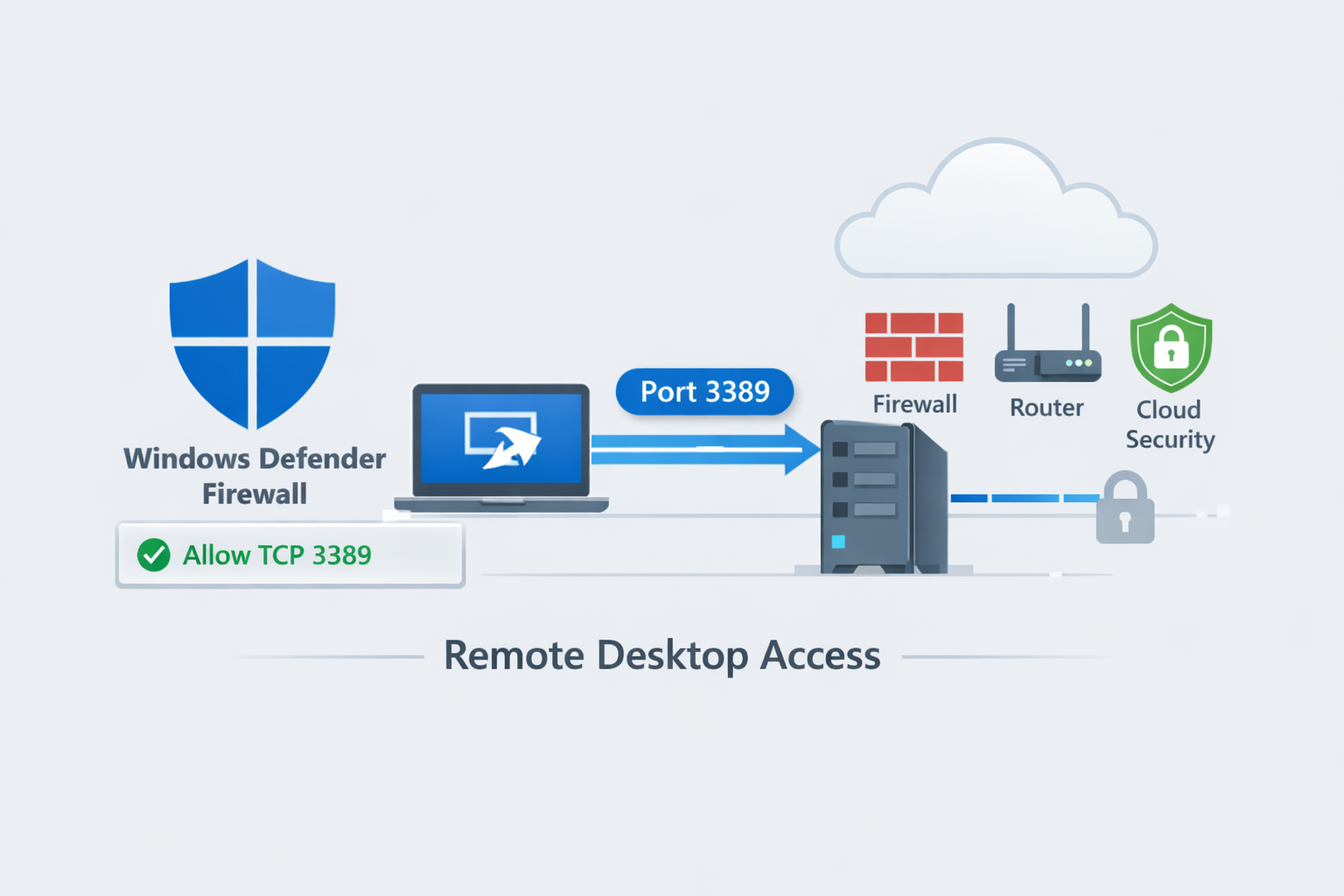
Remote Desktop Protocol (RDP) allows you to control a Windows computer remotely. By default, Microsoft Remote Desktop uses port 3389. If Remote Desktop works locally but fails from outside your network, the problem is often:
- 🔥 Windows Firewall blocking traffic
- 🌐 Router port forwarding missing
- 🛡 Cloud firewall rules
- 📡 ISP restrictions or CGNAT
- 🔒 Remote Desktop disabled on Windows
This guide explains how to open port 3389 and make Remote Desktop reachable safely.
Step 1 — Enable Remote Desktop
On Windows:
- Open Settings
- Go to System → Remote Desktop
- Enable Remote Desktop
- Allow access for your user account
Without Remote Desktop enabled, port 3389 will remain closed.
Step 2 — Allow Port 3389 in Windows Firewall
Open:
Windows Defender Firewall
→ Advanced Settings
→ Inbound Rules
Find:
Remote Desktop (TCP-In)
Ensure the rule is:
- ✅ Enabled
- ✅ Allowed
- ✅ Applied to your network profile
Step 3 — Configure Router Port Forwarding
If connecting from outside your home network:
- Router Admin Panel
- Port Forwarding
- External Port: 3389
- Internal Port: 3389
- Protocol: TCP
- Target Device: your Windows machine IP
Example:
External:
3389 TCP

↓

192.168.1.50:3389
Step 4 — Test From Outside Your Network
Testing internally can fail because many routers do not support NAT loopback. Use:
- Mobile data
- Another internet connection
- External port testing tools
🌐 Verify External Access
Check if port 3389 is reachable from the public internet.
Check Port Status →Port 3389 Open but Remote Desktop Still Doesn't Work?
Common causes:
❌ ISP CGNAT blocking inbound access
❌ Cloud firewall blocking traffic
❌ Wrong internal IP configured
❌ Windows machine sleeping
❌ VPN interfering with routing
Security Warning
Exposing RDP directly to the internet increases attack surface. Safer options:
- 🔒 VPN before RDP
- 🛡 Restrict source IPs
- 🔑 Strong passwords + MFA
- 🚫 Change default external port
- 📋 Enable account lockout policies
Final Checklist
✅ Remote Desktop enabled
✅ Firewall rule active
✅ Router forwarding configured
✅ External connectivity verified
✅ ISP not blocking inbound traffic