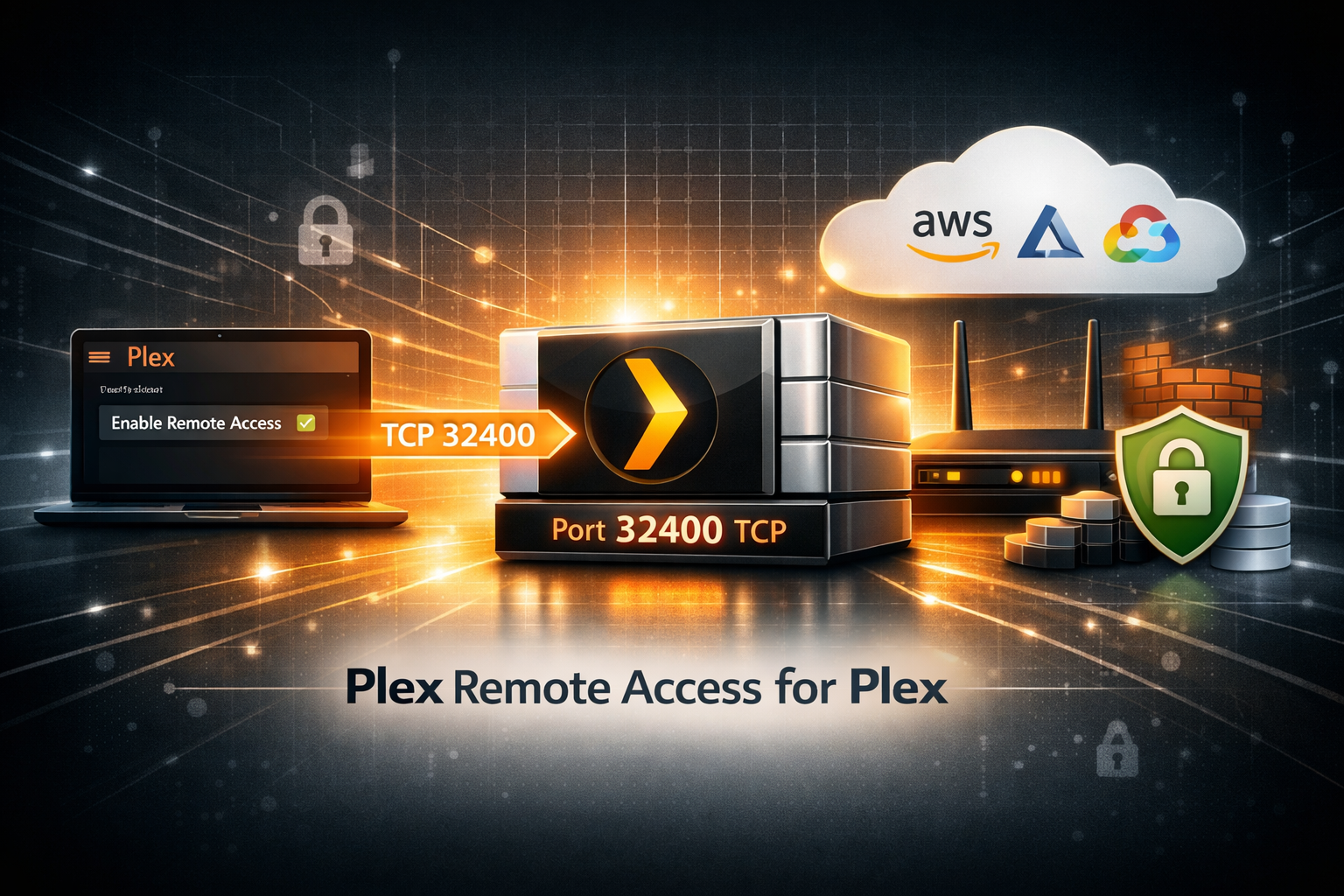
Plex uses port 32400 by default for remote access. If Plex works at home but fails outside your network, the problem is usually networking. Common causes:
- 🔥 Firewall blocking TCP 32400
- 🌐 Missing router forwarding
- 📡 ISP CGNAT restrictions
- 🐳 Docker networking issues
- ☁ Cloud firewall restrictions
Step 1 — Enable Remote Access
Open Plex settings:
Settings

→ Remote Access

→ Enable Remote Access
Plex should automatically detect connectivity. If it fails, continue below.
Step 2 — Configure Router Port Forwarding
Forward:
External Port:

32400 TCP

↓

192.168.1.50:32400
Replace the LAN IP with your Plex server. A static IP is strongly recommended.
Step 3 — Open Firewall Rules
Ubuntu:
sudo ufw allow 32400/tcp
sudo firewall-cmd \
--add-port=32400/tcp \
--permanent

sudo firewall-cmd --reload
Open:
Windows Defender Firewall

→ Advanced Settings

→ Inbound Rules
Step 4 — Docker Users
Bad:
docker run plex
docker run \
-p 32400:32400 \
plex
Docker port mapping is a common issue.
Plex Still Says "Remote Access Not Available"?
❌ ISP CGNAT blocking inbound traffic
❌ Wrong LAN IP configured
❌ Firewall still blocking
❌ Docker port mapping missing
❌ Double NAT router setup
CGNAT Problems
Many ISPs use Carrier Grade NAT. This means incoming traffic never reaches your router. Symptoms:
- Port forwarding configured correctly
- Port still closed externally
- Plex remote access randomly unavailable
Ask your ISP for a public IP.
Final Checklist
✅ Plex Remote Access enabled
✅ Router forwarding configured
✅ Firewall open
✅ Docker networking validated
✅ External port verified