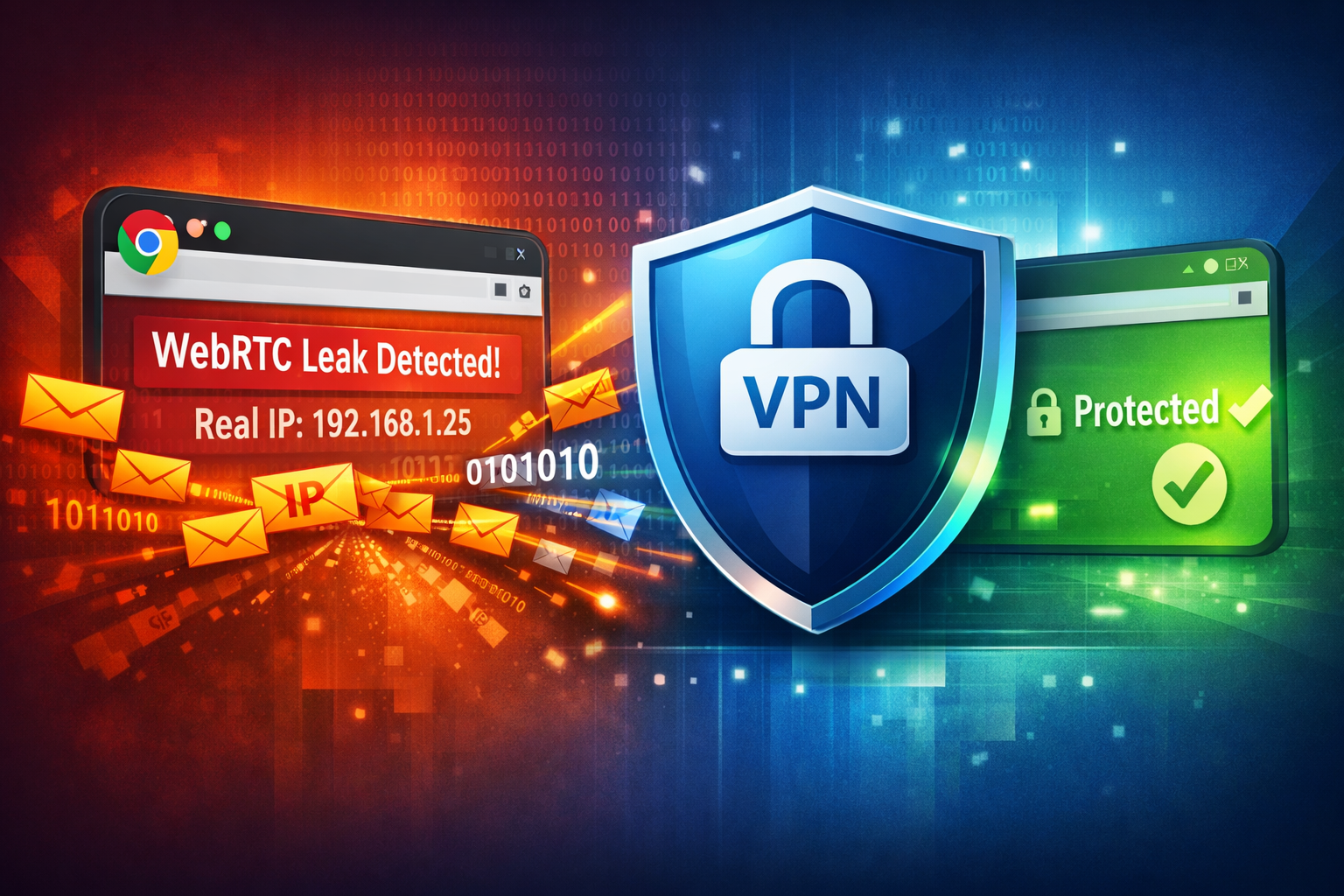
What Is a WebRTC Leak?
A WebRTC leak happens when your browser exposes your real IP address even while you are connected to a VPN.
WebRTC (Web Real-Time Communication) is a browser technology used for voice calls, video chat, screen sharing, and peer-to-peer communication directly inside websites and web applications.
Unfortunately, WebRTC can sometimes bypass your VPN tunnel and reveal:
- Your real public IP address
- Your local network IP address
- Your ISP-related network information
Even if your VPN is active, a WebRTC leak may still expose your real connection details to websites.
Why Chrome Users Are Affected
Google Chrome enables WebRTC features by default. This improves compatibility for modern web apps like Discord, Google Meet, Teams, or browser-based calls.
However, privacy-conscious users often discover that Chrome continues exposing network information even while using a VPN.
This is especially problematic for:
- VPN users
- Privacy-focused users
- Remote workers
- Journalists and researchers
- People bypassing geo-restrictions
Test Your Browser for WebRTC Leaks
Before applying fixes, you should first verify whether your browser leaks your real IP.
🔍 WebRTC Leak Test
Check instantly whether Chrome exposes your real IP address while your VPN is active.
Run WebRTC Leak Test →If the test shows your real IP address instead of only your VPN IP, your browser is leaking.
Method 1 — Use a Chrome Extension
The easiest fix is to install a WebRTC leak prevention extension.
Popular options include:
- WebRTC Network Limiter
- uBlock Origin (advanced settings)
- Privacy-focused VPN extensions
These extensions reduce or restrict WebRTC’s ability to expose local network information.
Some VPN providers also include built-in WebRTC leak protection inside their browser extension.
Method 2 — Switch to Brave Browser
Brave includes stronger privacy protections than standard Chrome while remaining Chromium-based.
Brave allows easier control over:
- Fingerprinting protection
- WebRTC IP handling
- Tracker blocking
- Privacy settings
For many VPN users, Brave leaks less information by default than standard Chrome.
Method 3 — Disable Non-Proxied UDP
Chrome allows limiting WebRTC UDP behavior through hidden settings and browser policies.
Some VPN apps automatically enforce this protection.
On managed systems, administrators can configure Chrome policies to reduce WebRTC exposure.
However, for most users, browser extensions remain the simplest solution.
Method 4 — Use a VPN with WebRTC Protection
Not all VPNs handle WebRTC leaks properly.
A good VPN should include:
- DNS leak protection
- IPv6 leak protection
- WebRTC handling
- Kill switch support
Many free VPNs fail to properly isolate browser traffic.
Verify That the Leak Is Fixed
After applying changes:
- Reconnect your VPN
- Restart Chrome
- Run the test again
You should now only see your VPN IP address instead of your real connection.
🛡️ Verify Your VPN Privacy
Check whether your browser still exposes your real IP while your VPN is active.
Check for WebRTC Leaks →WebRTC Leak vs DNS Leak
WebRTC leaks and DNS leaks are different privacy problems.
| Leak Type | What Leaks |
|---|---|
| WebRTC Leak | Real IP address |
| DNS Leak | DNS requests and visited domains |
For complete privacy, both should be checked regularly.
FAQ
Can Chrome leak my IP even with a VPN?
Yes. Chrome’s WebRTC functionality can sometimes expose your real IP address outside the VPN tunnel.
Does Incognito mode prevent WebRTC leaks?
No. Incognito mode does not disable WebRTC leaks automatically.
Is Brave safer than Chrome for VPN users?
In many cases yes. Brave includes stronger privacy protections and better control over WebRTC behavior.
Can websites detect my VPN even without WebRTC leaks?
Yes. Websites can still identify VPN IP ranges, datacenter networks, and proxy providers.
Final Thoughts
WebRTC leaks are one of the most common reasons VPN users accidentally expose their real IP address online.
Fortunately, fixing the problem is usually simple: use the right browser settings, install a privacy extension, and regularly verify your connection.
Testing your browser periodically is the safest way to ensure your VPN is actually protecting your privacy.